Introducing SID MCP: Outage intelligence for your AI workflow
Your team is already using AI to write code, investigate issues and prepare customer updates. When a service stops behaving as expected, checking its availability should fit into that workflow—not send everyone searching across unrelated tabs.
SID MCP is now live. It gives compatible AI clients a read-only connection to Status Is Down’s outage information, with six query tools, a business-workspace dashboard and a free starting allowance.
Explore SID MCP and get started free →
Bring outage context into the conversation
The Model Context Protocol, or MCP, is an open standard for connecting AI applications to external systems. Instead of relying only on an assistant’s training data, an authorized client can request information from a connected server. Anthropic’s original MCP announcement explains the underlying idea: make useful context accessible through a shared protocol rather than a separate custom integration for every source.
SID’s implementation has a focused job: bring available outage context into an AI-assisted workflow. That could mean asking about the status of OpenAI / ChatGPT / Codex, reviewing recent reports for Slack, or identifying the correct monitored service before a more specific question.
For developers using tools such as Cursor and teams working with Claude or other AI assistants, the aim is less context switching and a clearer starting point for investigation.
A note on clients: Claude has approved SID. Directory availability and custom connections are different: use the setup guide below and check each client’s plan and administrator requirements. Logos do not imply endorsement. The Gemini guide applies to Gemini CLI, not the consumer Gemini app.
Six tools, from a quick check to a deeper question
SID MCP makes the query types explicit, so you can choose the information you need and see the credit cost before building a workflow around it:
- Status query — 10 credits. Ask about a monitored service’s status and available outage context.
- Historical data — 50 credits. Review available daily community-report history, up to 31 days.
- Geography report — 50 credits. Explore available country or regional outage-report patterns.
- Problem indicator — 30 credits. Compare provider-status evidence with recent community reports.
- Real-time data spike query — 20 credits. Investigate an increase in report activity.
- Monitored service name lookup — 10 credits. Find the catalog entry that matches your question.
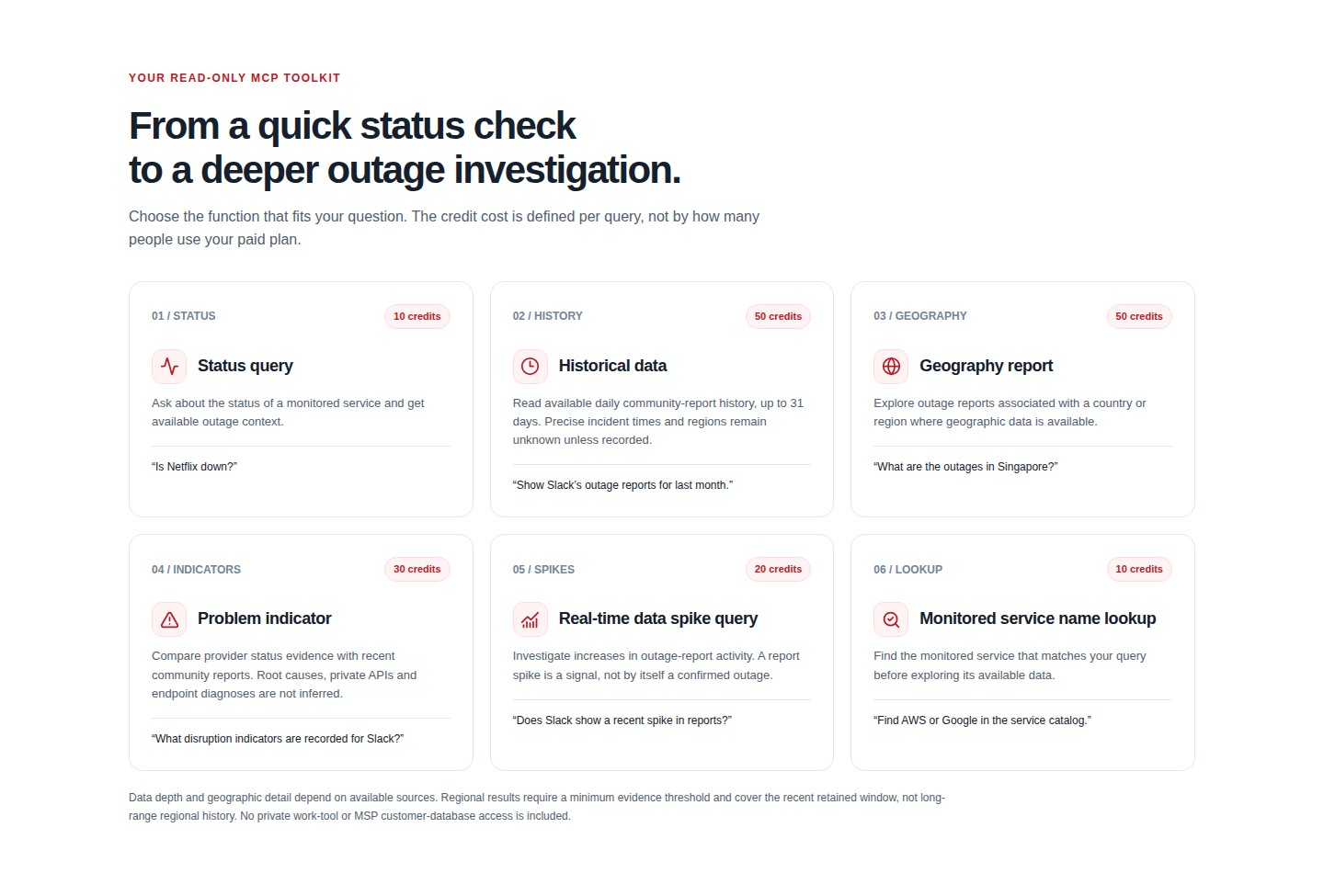
The released MCP landing page presents each function and its per-query credit cost.
These are different kinds of evidence, not interchangeable promises. A report spike is a signal—not, by itself, a confirmed outage. Historical and geographic answers depend on available sources; precise incident times, root causes or affected regions can remain unknown.
That distinction also matters in SID’s realtime view, which brings community reporting, provider-status context and recovery signals into a broader picture. Reading those layers together is more useful than treating a single burst of reports as a diagnosis. Use the live view for the current picture; this launch article does not assert that any named service is experiencing an outage.
A business dashboard that keeps access under your control
Open MCP Dashboard from your business account’s sidebar or Command Center. The console keeps the business navigation available and includes a direct return to your account dashboard, so managing the connection does not become a dead end.
From the console, authorized users can manage their workspace’s MCP connection, review the credit allowance and revoke credentials when access is no longer needed. The product supports OAuth and private bearer credentials; use the method supported by your client, and keep private credentials out of shared prompts, screenshots and public repositories.
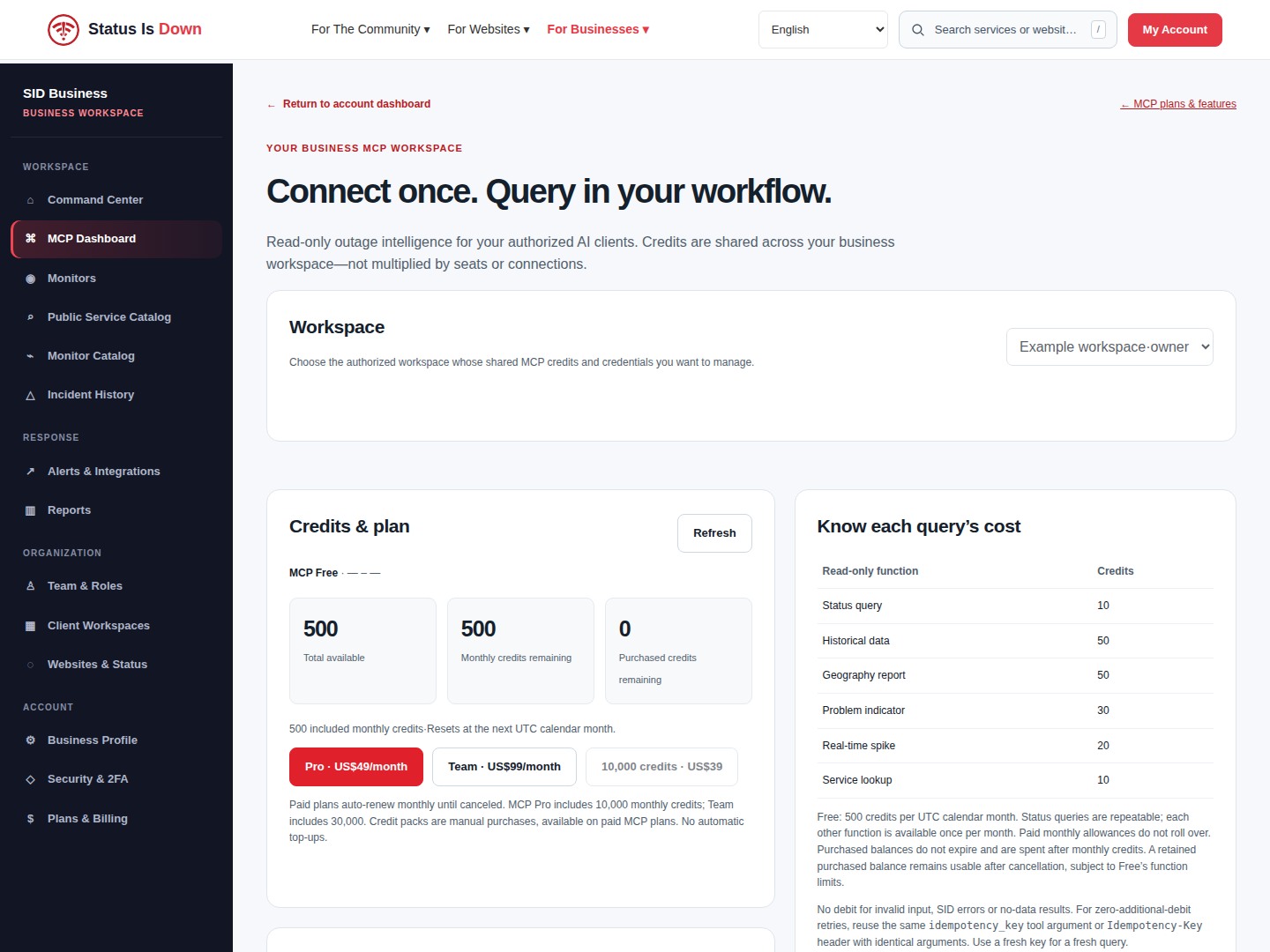
The released console interface, shown with an example workspace and demonstration allowance. No live account information or credentials are displayed.
Access is read-only, workspace-scoped and revocable. SID MCP does not change monitoring plans, modify alerts, perform remediation or read private messages and customer records from the apps represented by the logos. It is a separate business product, not a replacement for your existing SID monitoring subscription.
Start free; add capacity when your workflow needs it
MCP Free includes 500 credits each UTC calendar month, with no card required. You can repeat status queries within the balance and use each other function once per month. Credits are charged per query, at the costs shown above.
For ongoing business use, MCP Pro is US$49 per month with 10,000 monthly credits, and MCP Team is US$99 per month with 30,000 monthly credits. Both paid plans include unlimited authorized users within one business workspace, sharing the allowance and all six functions. Paid workspaces can also buy 10,000 additional credits manually for US$39; there are no automatic top-ups.
Paid plans renew monthly until cancelled. Included monthly credits do not roll over; purchased credits do not expire and are used after monthly credits. Existing personal and monitoring plans are unchanged. See the MCP plans and full credit terms before choosing a paid option.
Choose your AI tool
Start with your SID business MCP workspace. Confirm which account you are authorizing. The remote endpoint is https://statusisdown.com/api/mcp.
SID covers 13,500+ services; available records and geographic evidence vary. Access is read-only, workspace-scoped and revocable. Queries use SID MCP credits; connecting is not the same as running a query.
Claude
Connect through Claude’s connector directory.
- Open Claude connector settings and search for Status Is Down.
- Select the listing, connect and authorize your intended SID business account.
- Confirm read-only access. Plan and administrator restrictions may apply.
ChatGPT
Connect SID to your ChatGPT workspace.
- On ChatGPT web, open the custom MCP option in Plugins or Apps, if available.
- Enter the SID endpoint and select OAuth authentication.
- Complete SID read-only authorization and select the connector in a new conversation. An eligible plan and workspace permissions are required.
Cursor
Add SID to your Cursor MCP configuration.
- Open Customize, MCP, then New MCP Server.
- Add status-is-down with the SID endpoint under mcpServers in your MCP JSON configuration. Preserve existing servers.
- Save, authenticate when prompted and confirm the six SID tools appear.
GitHub Copilot in VS Code
Use SID with GitHub Copilot in VS Code.
- Run MCP: Add Server from the VS Code Command Palette.
- Choose HTTP, enter the SID endpoint, name the connection and select its configuration scope.
- Complete browser authorization. VS Code workspace configuration uses servers and type http, not the Cursor mcpServers format.
GitHub Copilot in VS Code setup documentation
Manus
Add a custom SID MCP connection.
- Open connector settings and choose the custom MCP option, if available.
- Enter the SID endpoint and use the authentication method supported by your client.
- Use OAuth if offered. Otherwise put your private SID credential only in a secure authentication or header field, never in chat, URLs or repositories.
Gemini CLI
Configure SID in Gemini CLI.
- Add status-is-down to the CLI MCP settings with httpUrl set to the SID endpoint and OAuth enabled.
- Request the sid:mcp:read scope, then run /mcp auth status-is-down.
- Complete browser authorization. Use /mcp to inspect connection status.
Gemini CLI setup documentation
Meta Muse
Find SID in your available connectors.
- Open Settings, then Connectors.
- Search for Status Is Down. If it appears in your available connectors, select it and follow the authorization flow.
- Review the requested permissions and authorize your intended SID business account.
Microsoft 365 Copilot
Set up administrator-managed access.
- Ask your Microsoft 365 tenant administrator to review the federated-connector setup requirements.
- An authorized tenant administrator must approve the connector and enable it for intended users.
- Follow Microsoft’s documented authentication and tenant configuration requirements.
Microsoft 365 Copilot setup documentation
Connect in three steps
- Create a business account or sign in. Use the existing Google, Apple or email options on the MCP signup page.
- Open your MCP Dashboard. Review the workspace and connection controls, then configure an authorized connection using the method your client supports.
- Add the remote endpoint to your compatible client. Use
https://statusisdown.com/api/mcp, complete the required authentication and start with a specific, read-only question.
You do not need to redesign your team’s workflow to explore the essentials. Start with a question you already ask during an investigation, review the evidence returned and keep human judgment in the loop.
Bring outage context into your AI workspace—explore SID MCP →